Quick help with multiple file selection
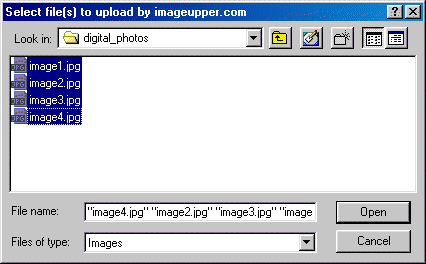
- First, click 'Browse'. This will open up a window that lets you browse to the folder that contains your images. Simply browse to it just as you would in any Windows application.
- To select multiple files: Click on the first file in the list. Then, hold down 'Shift' and press the down arrow on your keyboard. This will select all the files you move across, so if you want to keep selecting more, keep hitting down again until all the files you want are selected.
 Tip: Images are added to your gallery in the same order you add them to your queue. So if your images are added in reverse order, instead of starting with the first file, start with the last and use the up arrow to select the images in reverse order.